Multimedia Applications
This chapter mainly introduces the audio and video playback methods for the Quectel Pi M1 / L1 smart control board.
Preparation
Audio Playback
Before playing audio, please first push the corresponding audio file to the development board.
Open the ADB tool, connect to the development board, and open the ADB terminal. Use the adb push command to push the audio file to the development board.
adb push E:\eage\test.mp3 /sdcard/Music #Push audio to the DCIM directory on the development board's SD card#Enter the development boardsu    #Switch to root user
am broadcast -a android.intent.action.MEDIA_SCANNER_SCAN_FILE -d file:///sdcard/Music/test.mp3     #Rescan this file in the media library
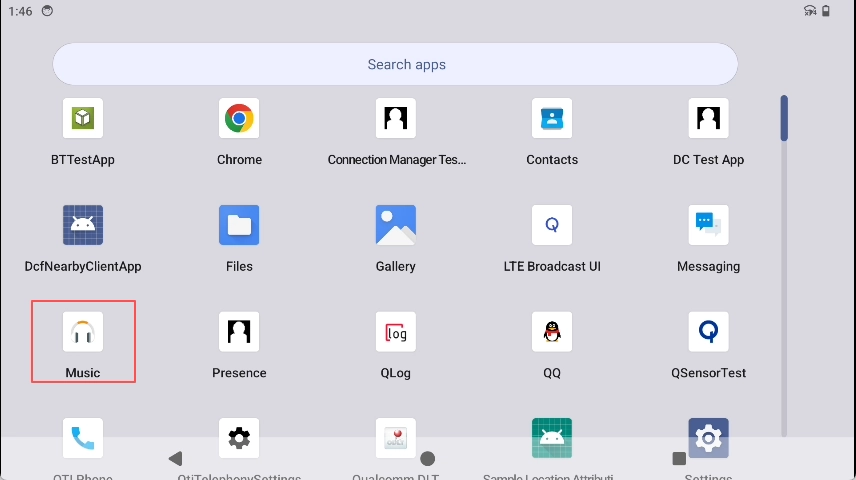
The Android system comes with a pre-installed Music player. You can play audio by following these steps:
Open the Music player;
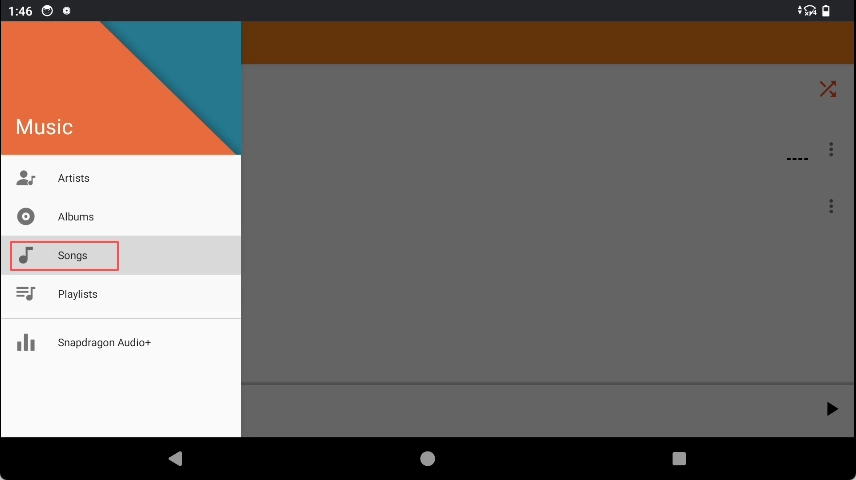
Click the left option panel to search for songs;
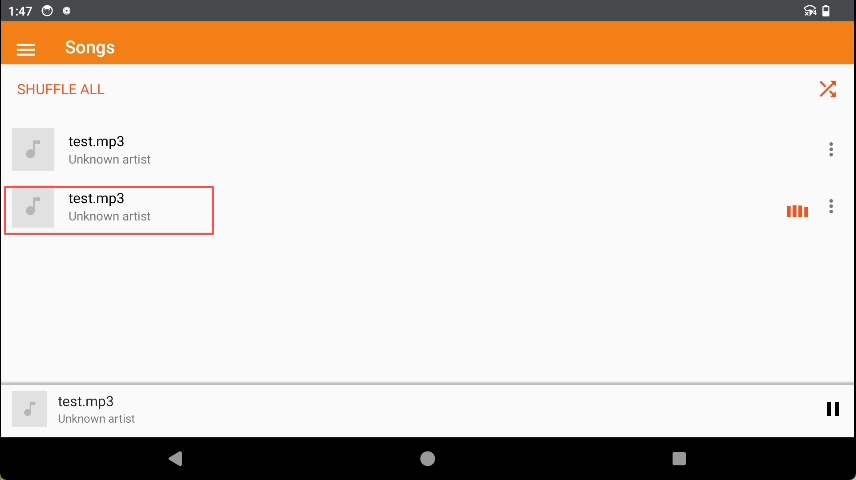
Find the audio file and click to play.
Video Playback
Before playing video, please first push the corresponding video file to the development board.
Open the ADB tool, connect to the development board, and open the ADB terminal. Use the adb push command to push the video file to the development board.
adb push "E:\FeiShu\Animal World.mp4" /sdcard/DCIM     #Push the relevant video to the DCIM directory on the development board's SD card#Enter the development boardsu    #Switch to root user
am broadcast -a android.intent.action.MEDIA_SCANNER_SCAN_FILE -d file:///sdcard/DCIM/Animal World.mp4    #Rescan this file in the media library
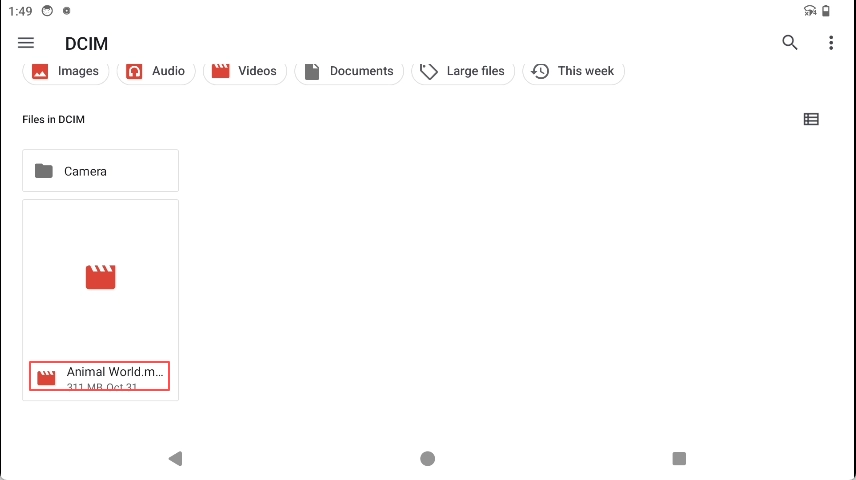
The Android system comes with a pre-installed Gallery. You can play video files by following these steps:
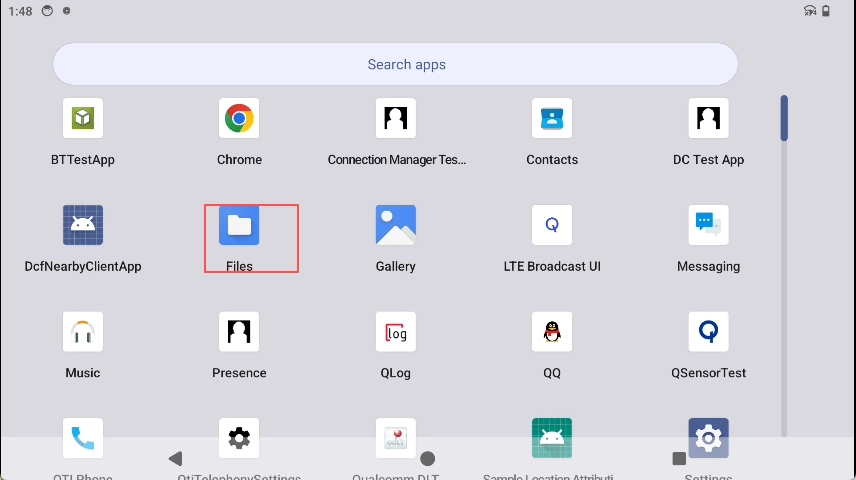
Click the corresponding icons in sequence to enter the file manager;
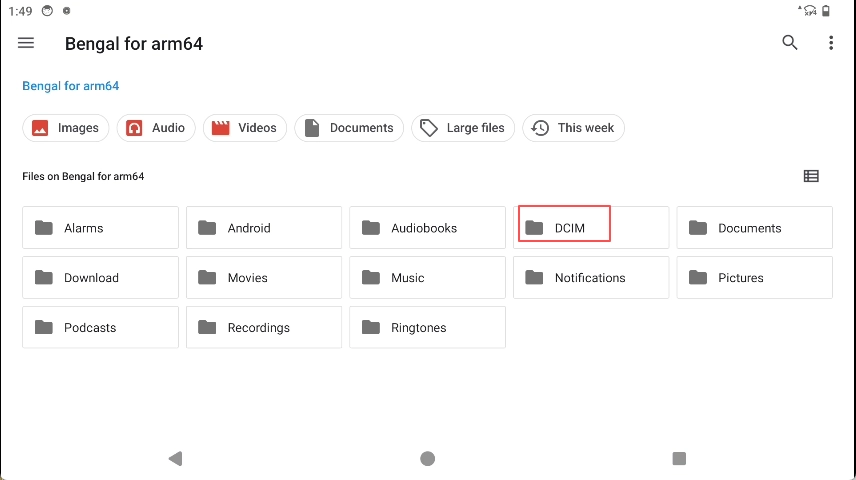
Find the video file and double-click to play.